Host organisation setup
Set up a host organisation, from its details to its workflows.
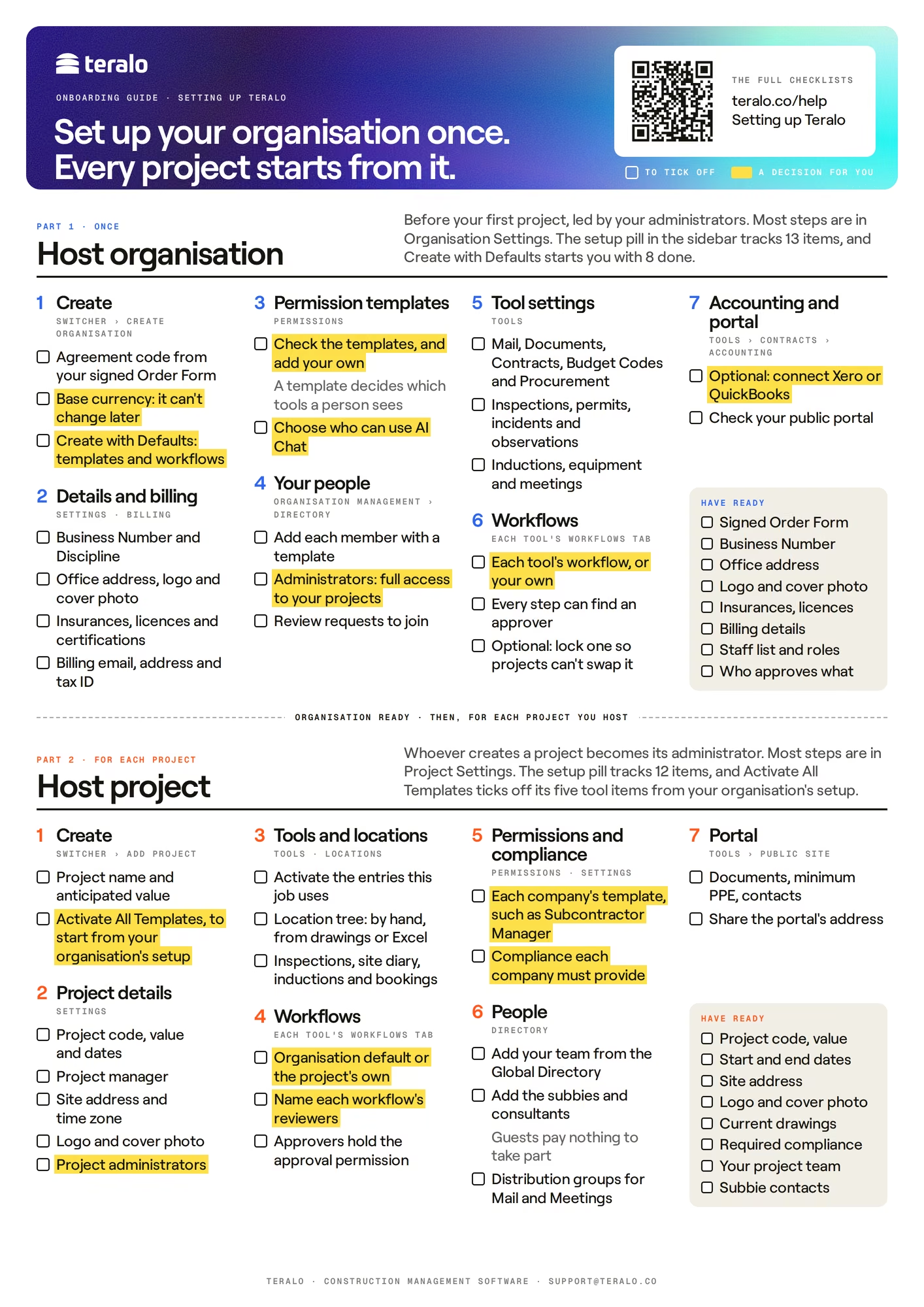
This onboarding checklist sets up a host organisation before its first project: its details, billing, permission templates, people, tools and approval workflows. Each item says where it is in Teralo, and links to the article with the steps. The ticks you make here are saved in this browser, not in your account. This checklist and the project setup checklist are also on one A4 page, in the printable onboarding checklist.
A project created with Activate All Templates starts with the organisation's tool settings, project permission templates and workflow templates. Anything the organisation adds later is switched on project by project. Learn more about organisation level and project level.
A guest organisation has a shorter checklist. Learn more about guest organisation setup.
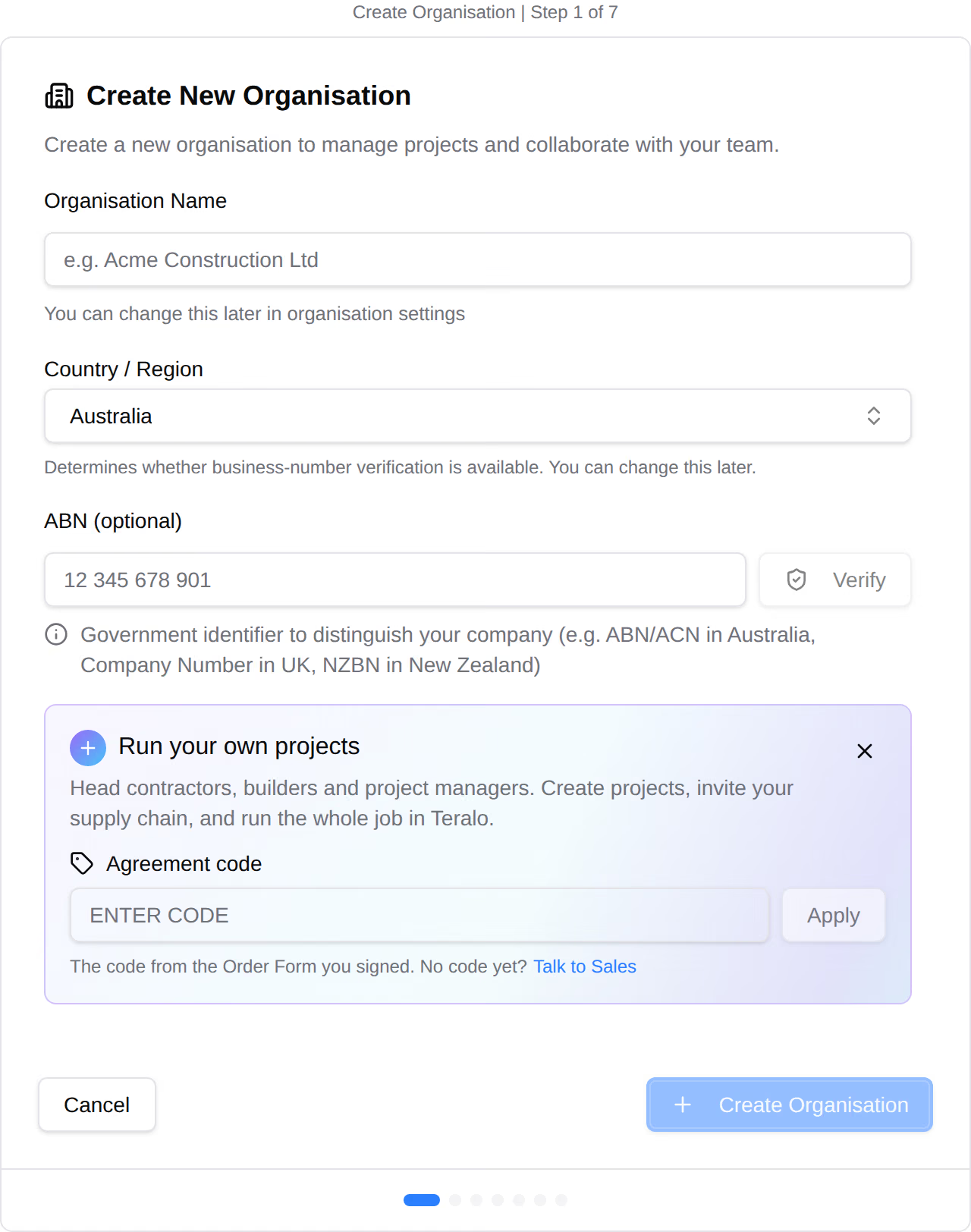
Create with Defaults adds permission templates, a default approval workflow for each tool that has one, and the types, statuses and categories each tool uses. Start blank instead adds none of them: the only permission template is No Access, and records can't be submitted until workflows are bound. Learn more about setting up your organisation.
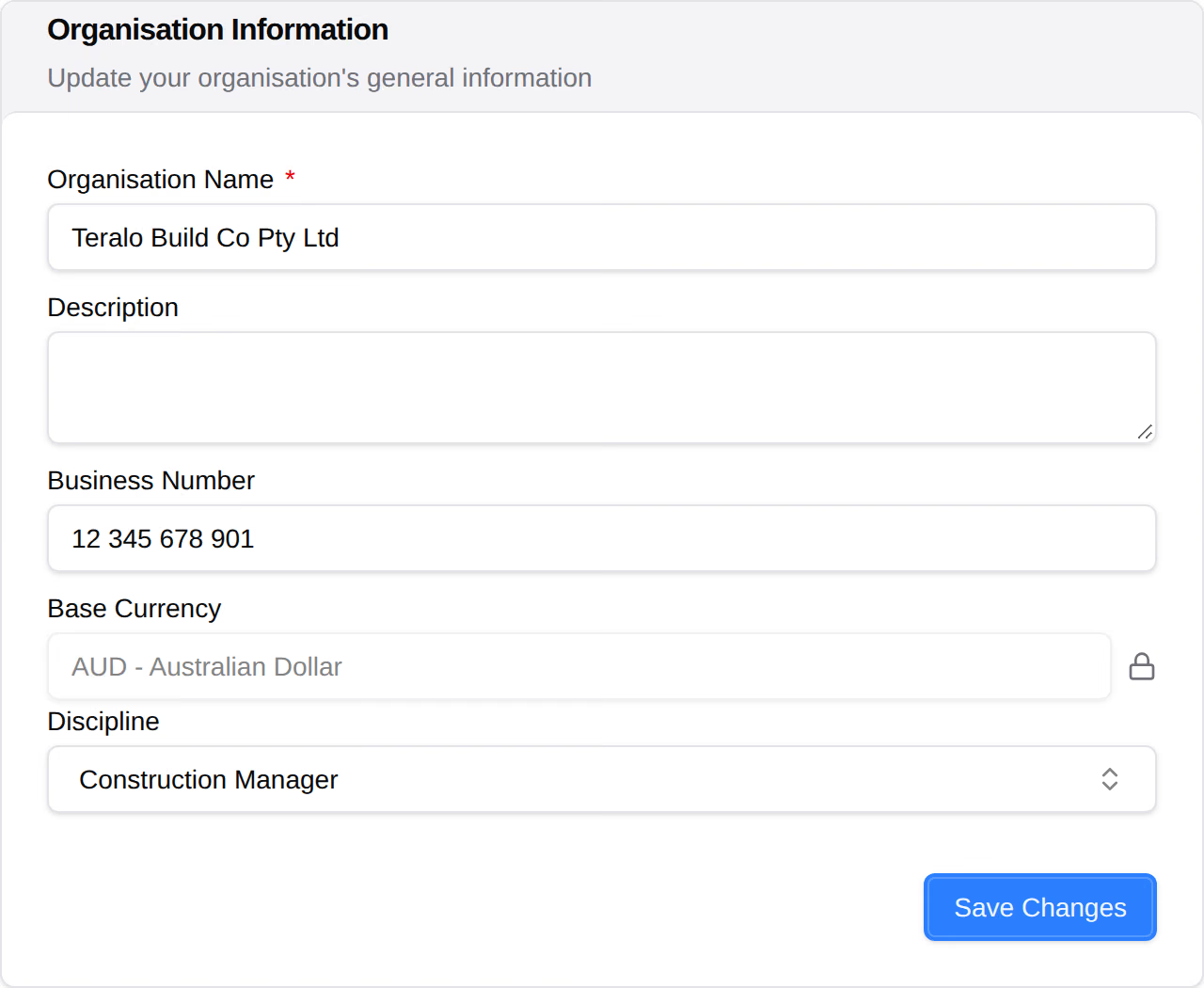
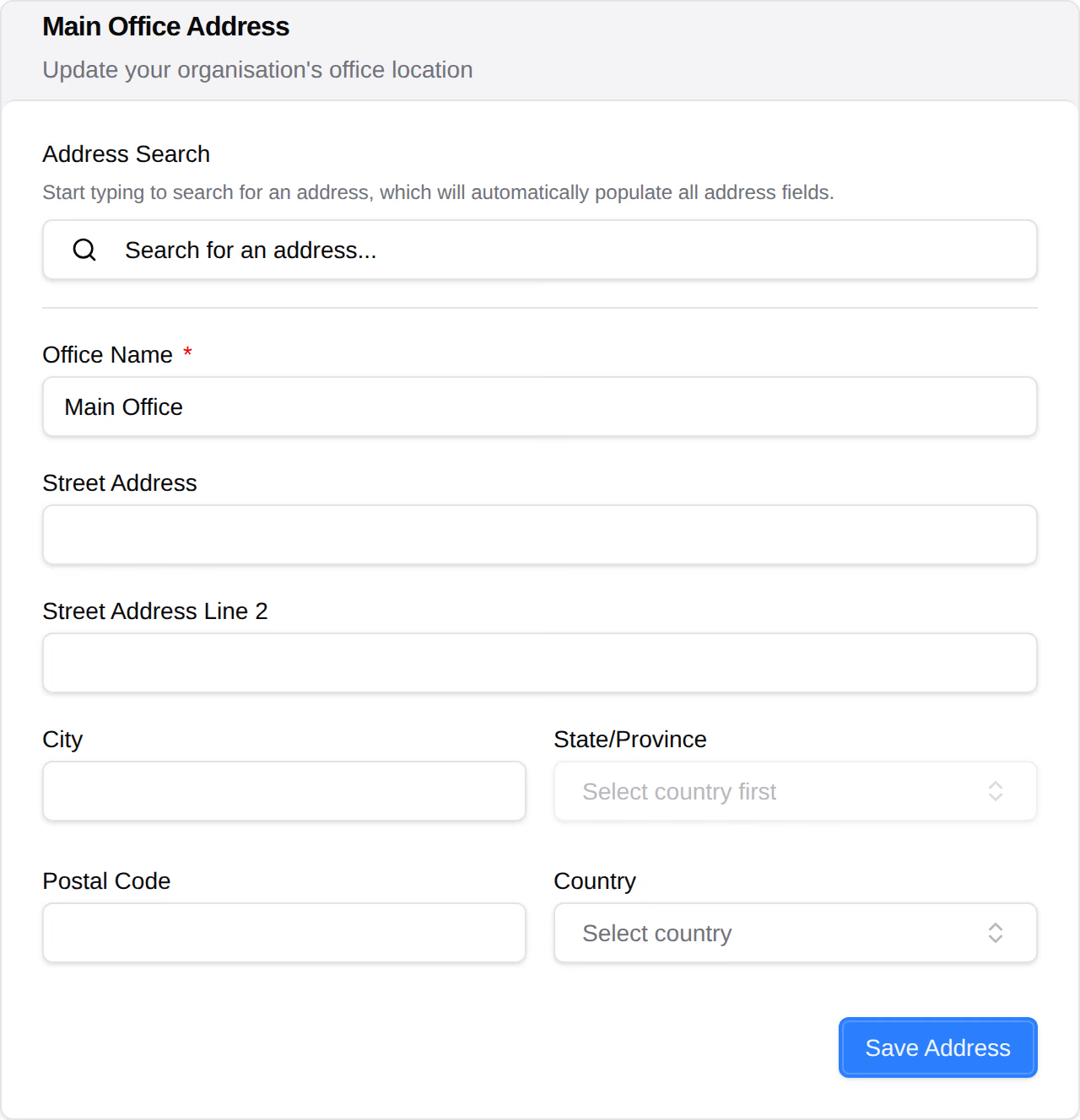
In the organisation sidebar, under Organisation Settings, select Settings.
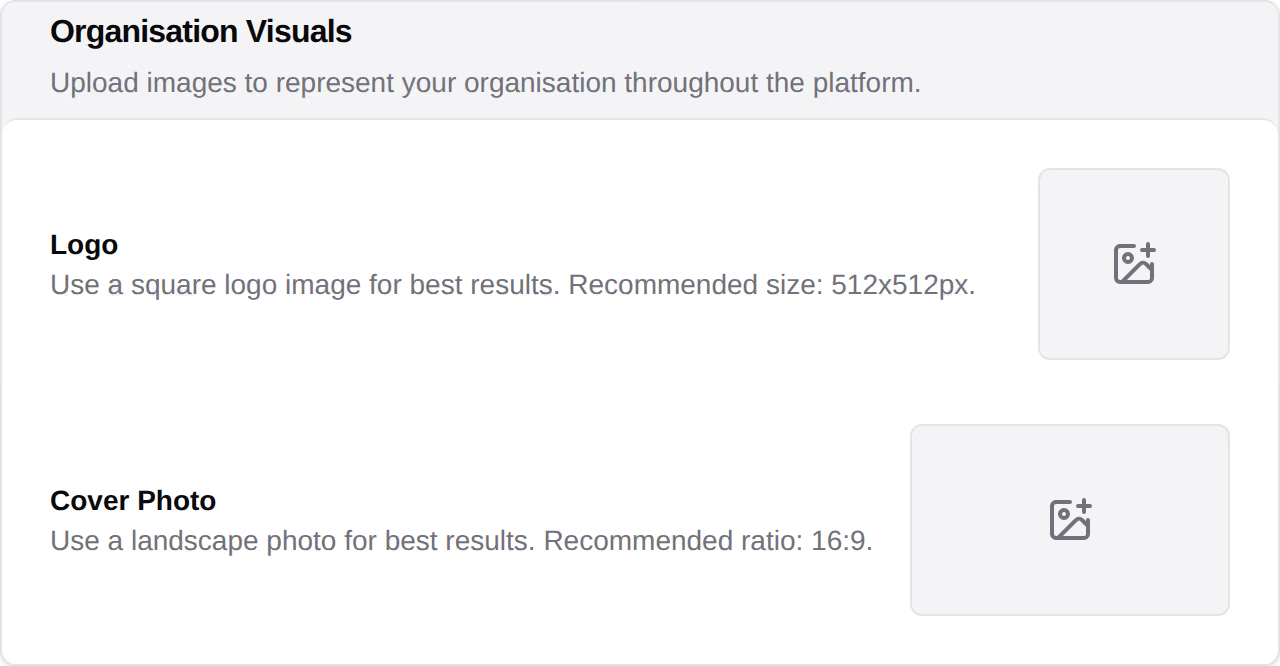
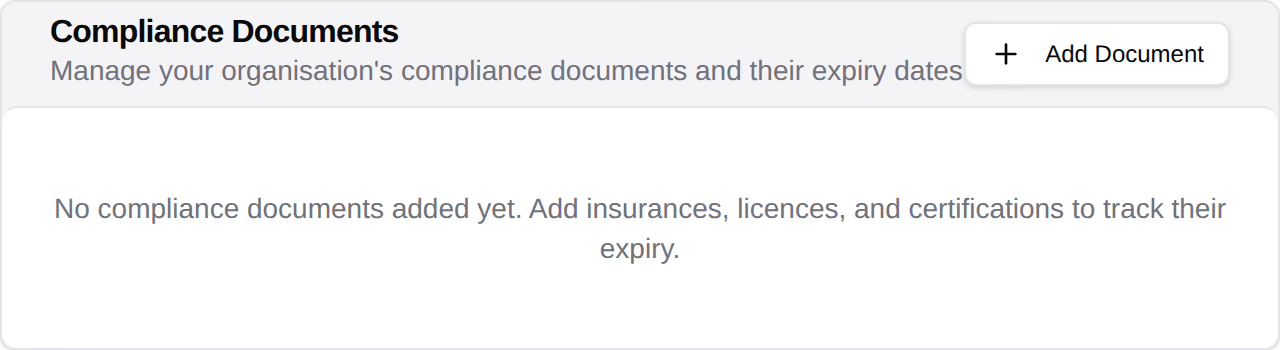
The logo, cover photo and description also appear on your organisation's public portal.
In the organisation sidebar, under Organisation Settings, select Billing.
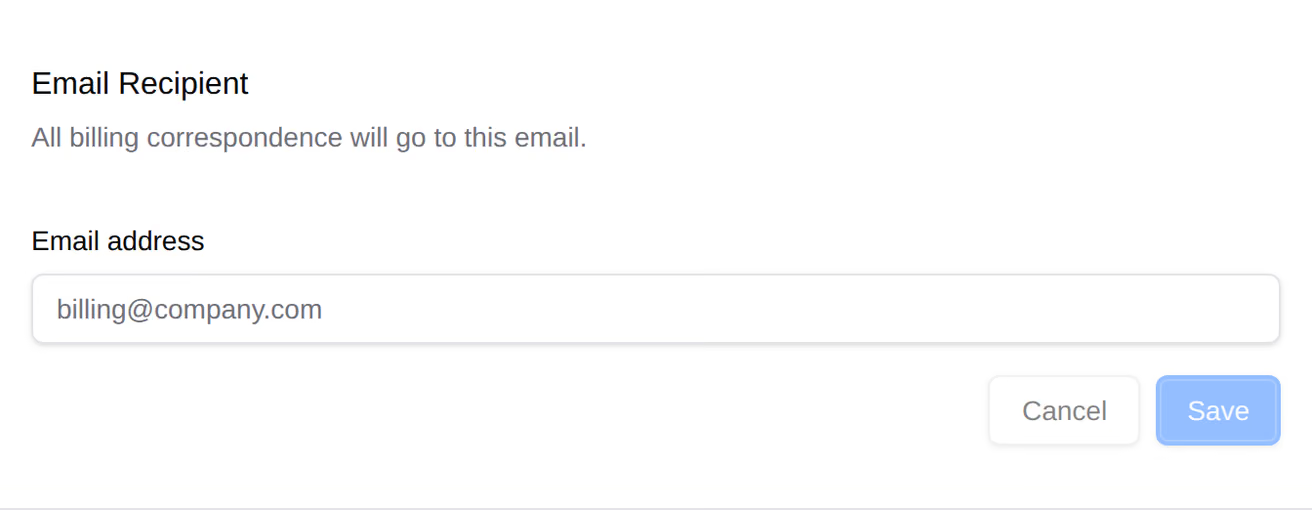
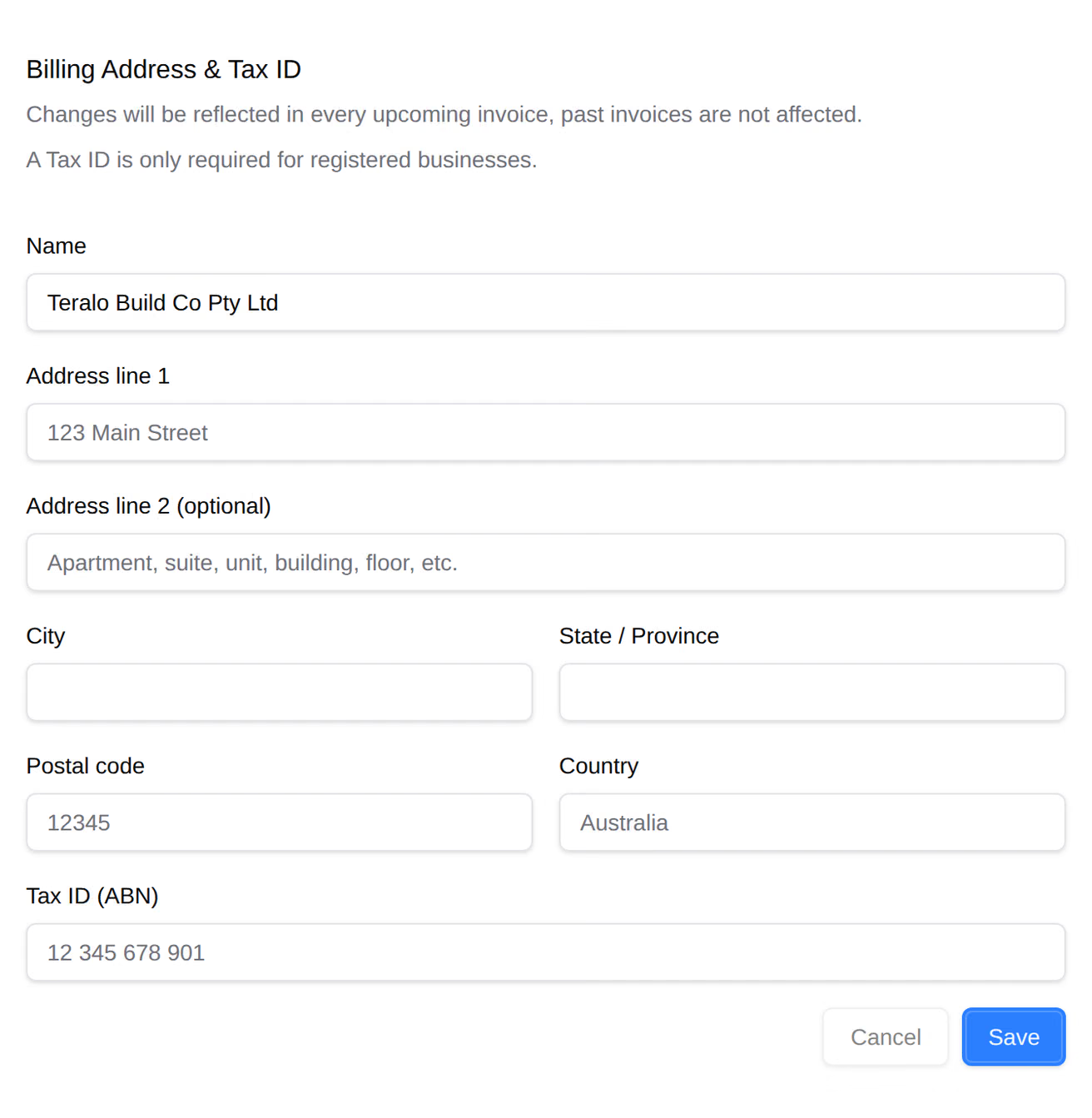
Learn more about billing.
In the organisation sidebar, under Organisation Settings, select Permissions.
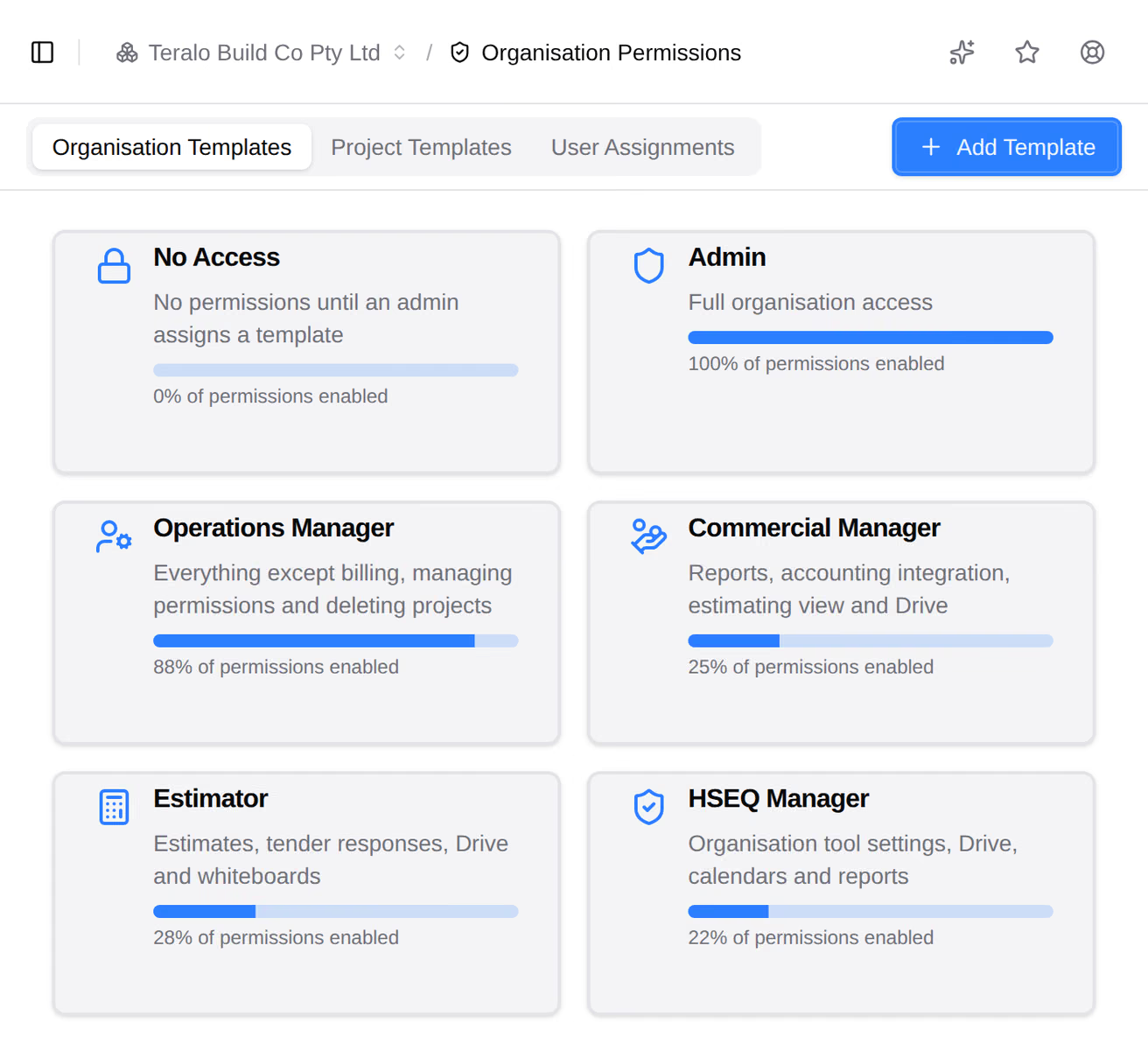
A template is the set of permissions a person is given, and decides which tools appear in their sidebar. Teralo has no other switch that turns a tool on: a tool appears when someone's template gives them a permission for it and your plan includes it. Only an administrator can create a template. Learn more about permission templates.
In the organisation sidebar, under Organisation Management, select Directory.
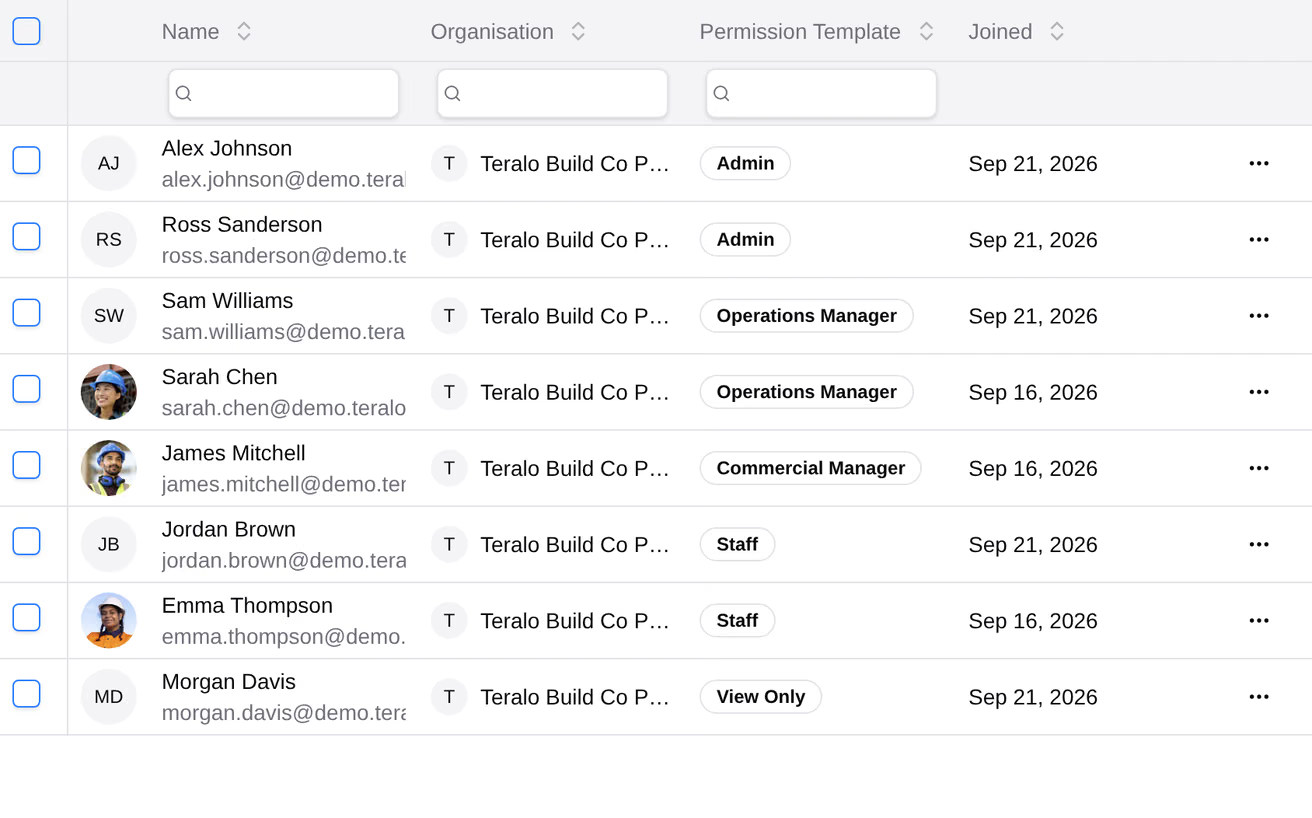
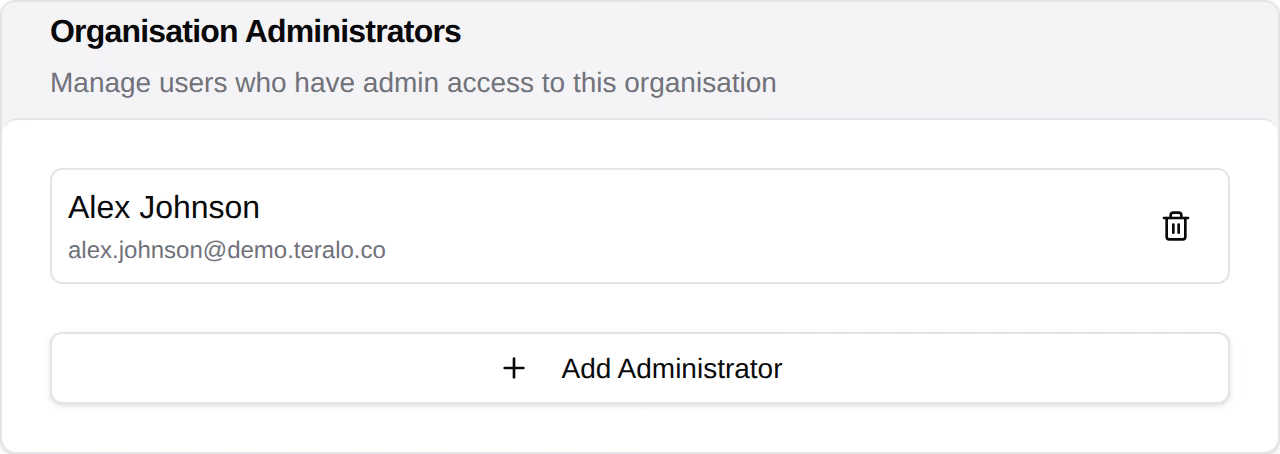
Joining the organisation doesn't add a member to its projects. Administrators are the exception: they have full access to every project the organisation hosts. Learn more about members and user applications.
In the organisation sidebar, under Organisation Settings, select Tools. Each card opens one tool's settings. Learn more about the tools catalogue.
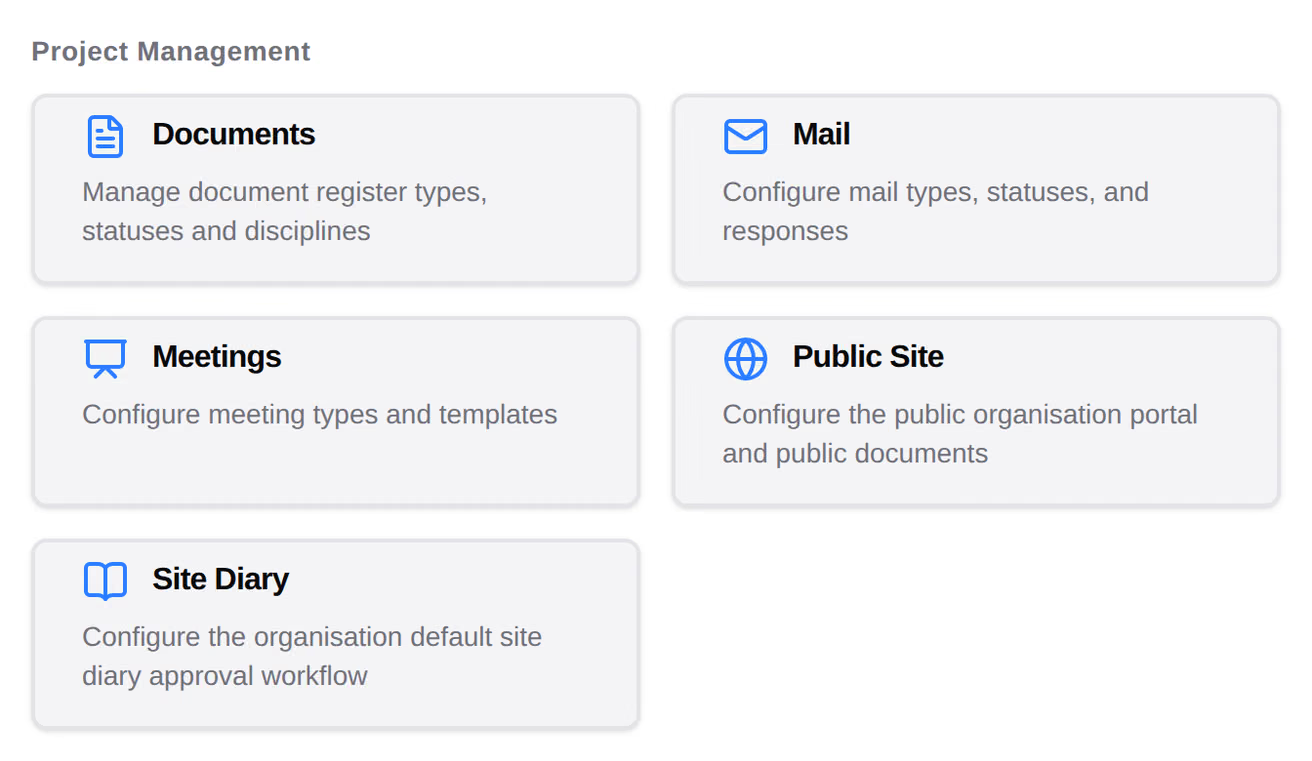
Safety Data Sheets, Site Diary, Bookings and Timesheets have only a workflow at organisation level. Directory, Site Messages, Whiteboard, Photos, Tenders, Cashflow and Program have nothing to set up.
Each tool that uses a workflow has a Workflows tab in its settings.
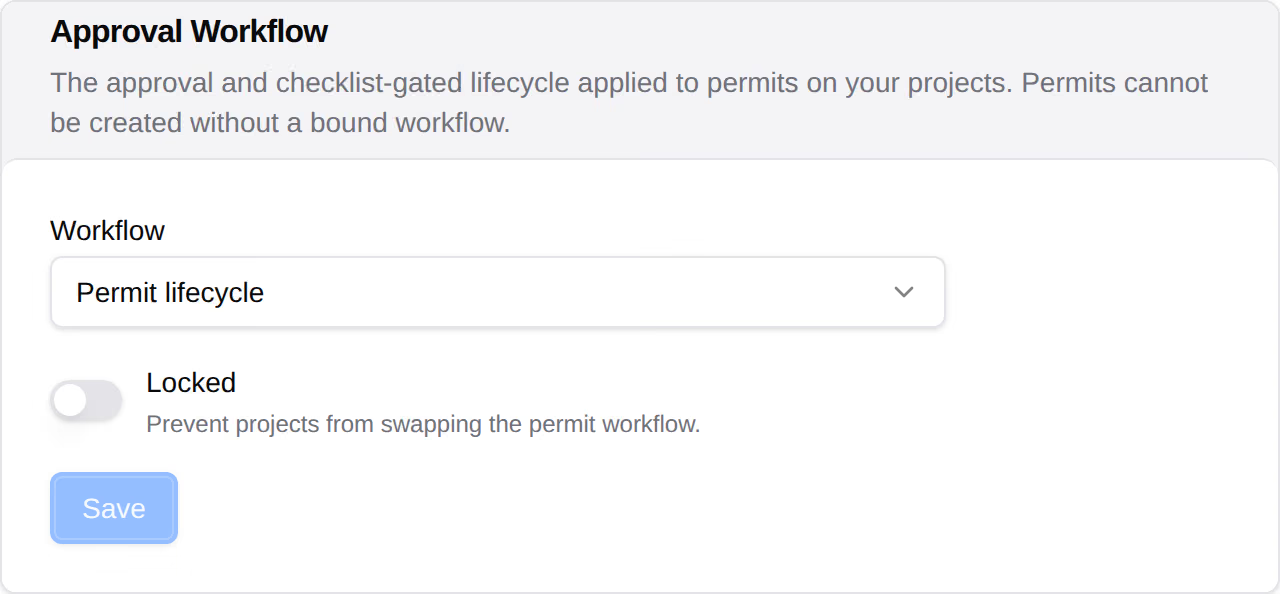
An organisation template can't name specific people. Each project names them on its own copy of the template. Contracts choose their workflows on each contract, and procurement chooses one each time something is submitted. Learn more about binding a workflow to a tool.
Optional, and only on a host organisation. In the organisation sidebar, under Organisation Settings, select Tools, then Contracts, and the Accounting tab.
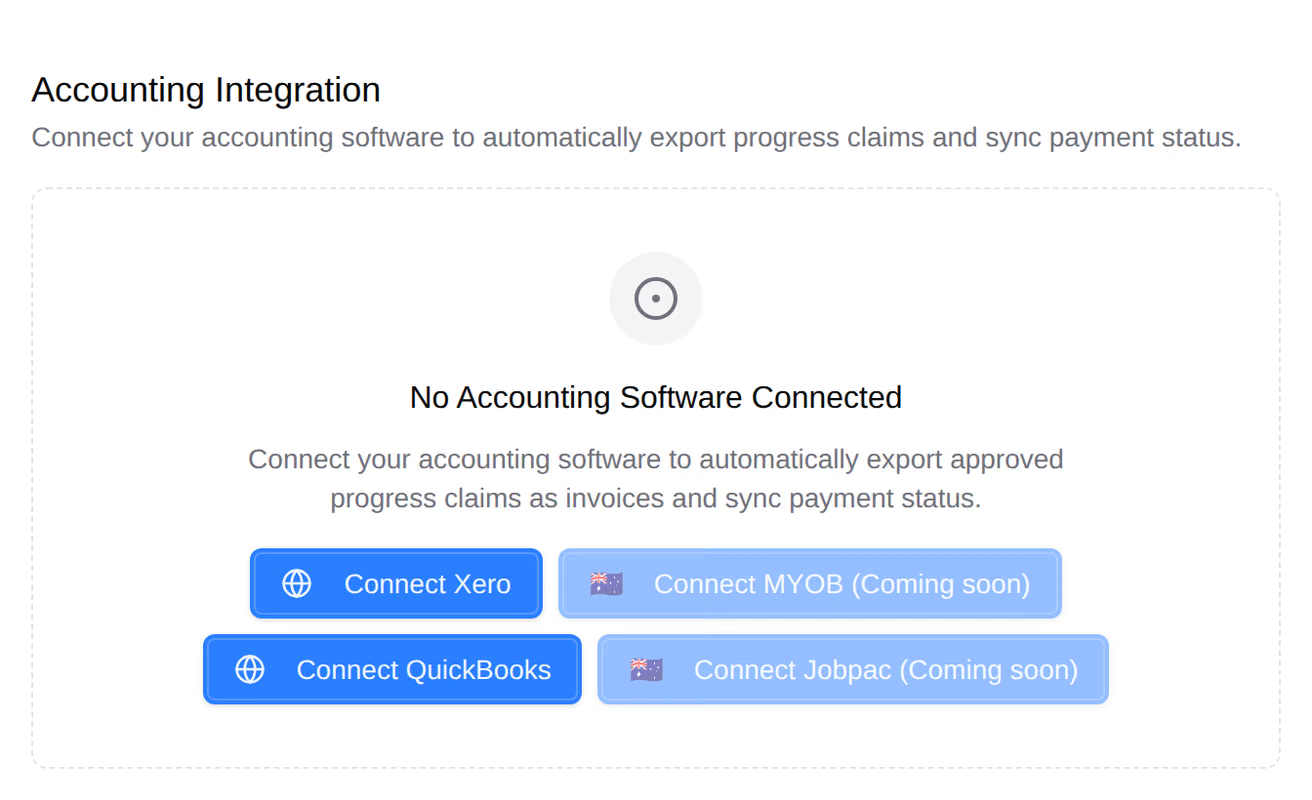
Learn more about integrations.
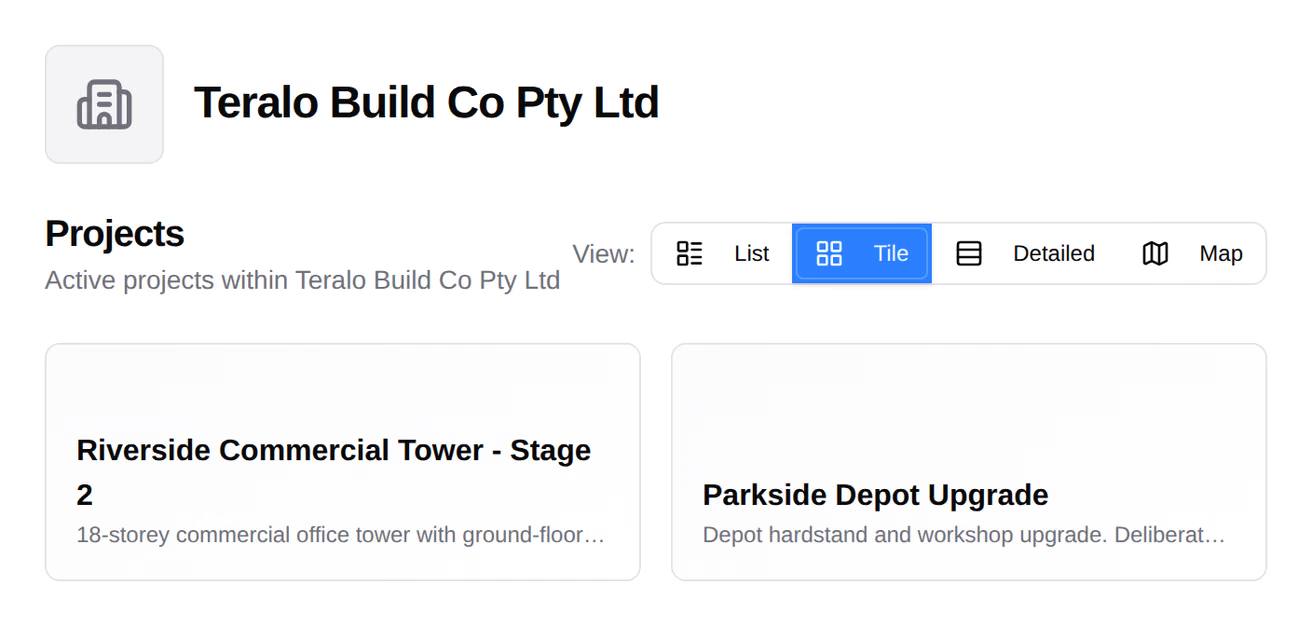
The organisation portal is on by default. It shows the name, logo, description and cover photo from Organisation Settings, and lists the organisation's active projects. To turn it off, select Tools, then Public Site, and turn off Portal Enabled on the Contact Settings tab. Learn more about the public portal.
The Organisation setup pill in the sidebar footer tracks 13 items on a host organisation. Only administrators see it. Select it to see the items, and select an item to open the page where you set it.
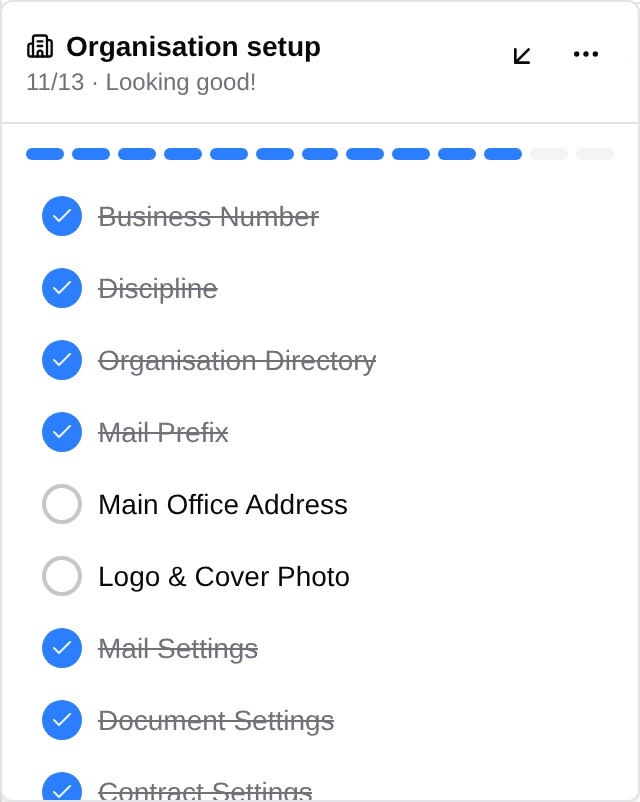
Each item is done when:
- Business Number and Discipline: they are filled in.
- Organisation Directory: a second person has been added to the organisation.
- Mail Prefix: it is set. Teralo makes one from the organisation's name when it is created, so this starts done.
- Main Office Address: the address has a street or a city.
- Logo & Cover Photo: both are added.
- Mail Settings, Document Settings and Contract Settings: the tool has at least one type or status. Every organisation starts with the Under Review and Approved contract statuses.
- Budget Codes: there is at least one cost type or cost code.
- Procurement Settings: there is at least one package category.
- Organisation Permission Template and Project Permission Template: there is at least one template other than No Access.
A host organisation created with Create with Defaults starts with 8 of the 13 done.
The pill disappears when every item is done, and doesn't come back if a setting is removed later. To hide it sooner, select the three dots on the pill, then Mark all as complete. That hides it for every administrator, and it can't be shown again.
When a guest organisation becomes a host, its pill comes back with all 13 items, even if it was hidden. Learn more about hosts and guests.